HiPerGator
For classroom and teaching support on HiPerGator, see UF Research Computing's guide: it.ufl.edu — Teaching Support.
Getting Started: From Zero to a Running Notebook
1. Get a HiPerGator Account
docs.rc.ufl.edu/quickstart/zero_hipergator
- Every group needs a sponsor (PI) with an existing HiPerGator account and a funded resource allocation
- Group members then request their own account under that sponsor
- Once the sponsor approves, account creation takes about 2–3 business days
2. Ways to Connect
docs.rc.ufl.edu/quickstart/interfaces
- Command line — connect over SSH into a Linux shell; best for automation and full flexibility
- Web interfaces — Open OnDemand (GUI apps, RStudio, MATLAB) and JupyterHub (notebooks), both in your browser
3. Launch a Notebook via JupyterHub
- Go to jupyterhub.rc.ufl.edu and log in with your GatorLink credentials
- Pick a resource profile from the dropdown — CPU cores, memory, GPUs, and time
- Click Start — your request is submitted to the SLURM scheduler and the server usually starts within a few minutes
4. Stop Your Server When Finished
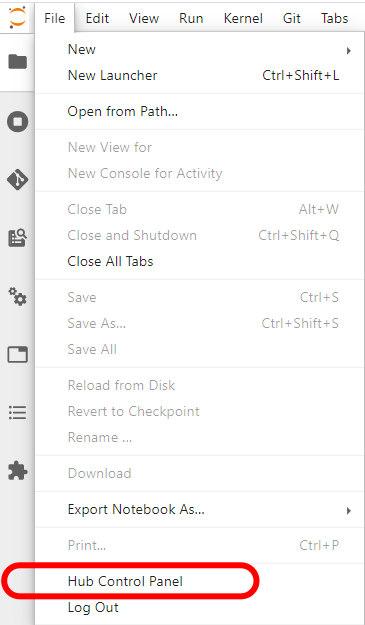
- From the notebook's File menu, choose Hub Control Panel
- Click Stop My Server
- This frees the CPU/GPU/memory for the rest of your group — don't leave idle servers running
5. Choosing a Kernel on HiPerGator
- UFRC managed kernels (e.g.
UFRC Python-3.x) give quick access to hundreds of preinstalled packages - For reproducible, project-specific work, build your own conda environment and register it as a personal kernel
- Same idea as Creating & Exporting a Conda Environment — just running on HiPerGator instead of your own machine
Training
UF Research Computing's HiPerGator Training page has recorded sessions and self-paced materials covering:
- Intro to Research Computing and HiPerGator, and Linux command line basics
- Slurm job submission (including MPI jobs)
- Open OnDemand, Jupyter notebooks, Conda environments, and VSCode remote tunnels
- Data transfer (Globus, SFTP, rsync, rclone)
- Git/GitHub basics (self-paced Canvas course)
Each topic links to both a studio-recorded video and a Zoom recording of the live session.