Installing Visual Studio Code
1. Download VS Code
code.visualstudio.com/docs/editing/getting-started
- Go to code.visualstudio.com/download
- Download the build for your OS (Windows / macOS / Linux)
2. Run the Installer
- Windows — run the
.exeand check "Add to PATH" - macOS — unzip and drag
Visual Studio Code.appinto Applications - Linux — install the
.deb/.rpmpackage for your distribution
3. Open a Folder
- Launch VS Code
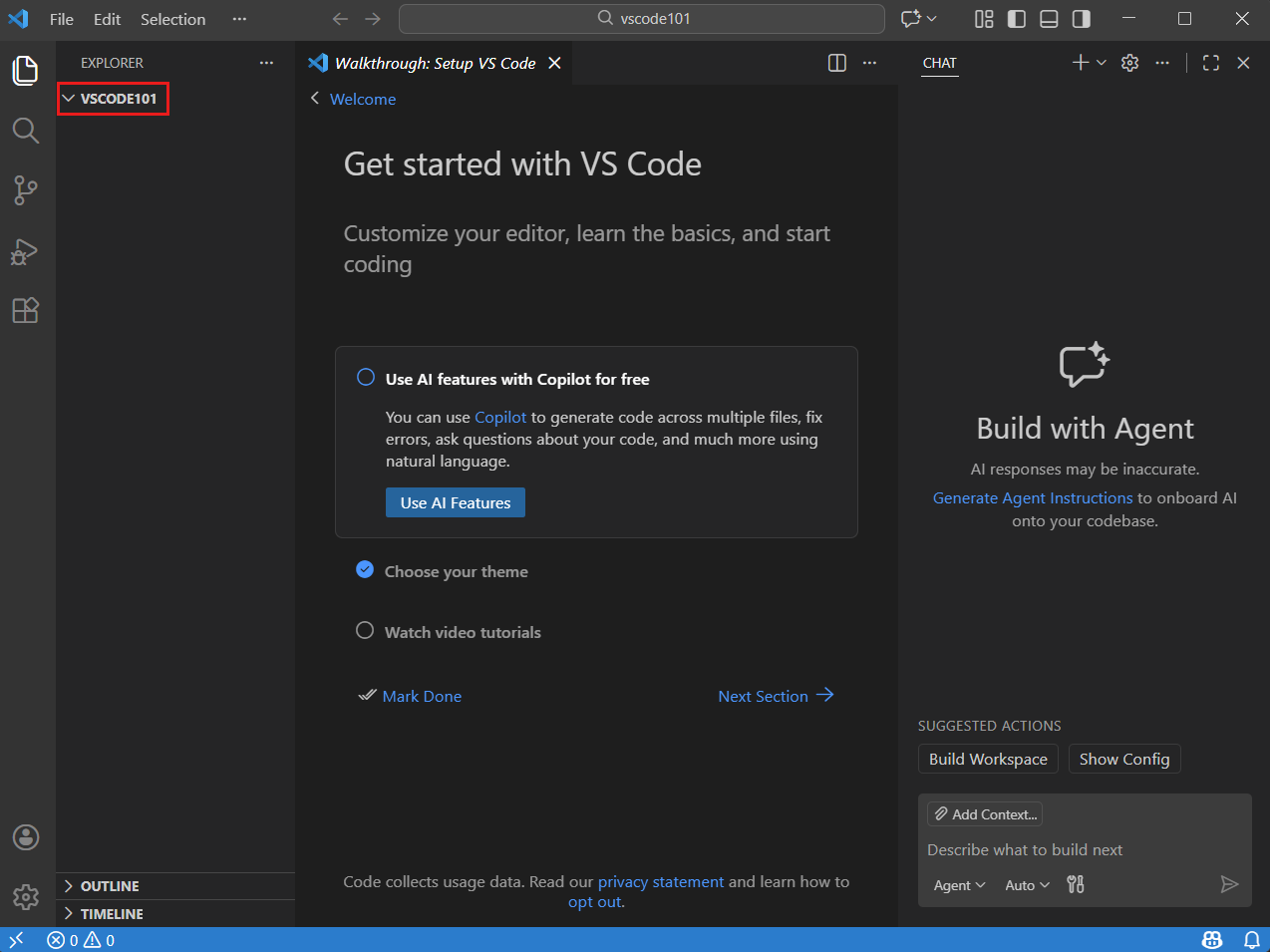
- File → Open Folder… and select your course folder
- VS Code treats that folder as your workspace
4. Trust the Workspace
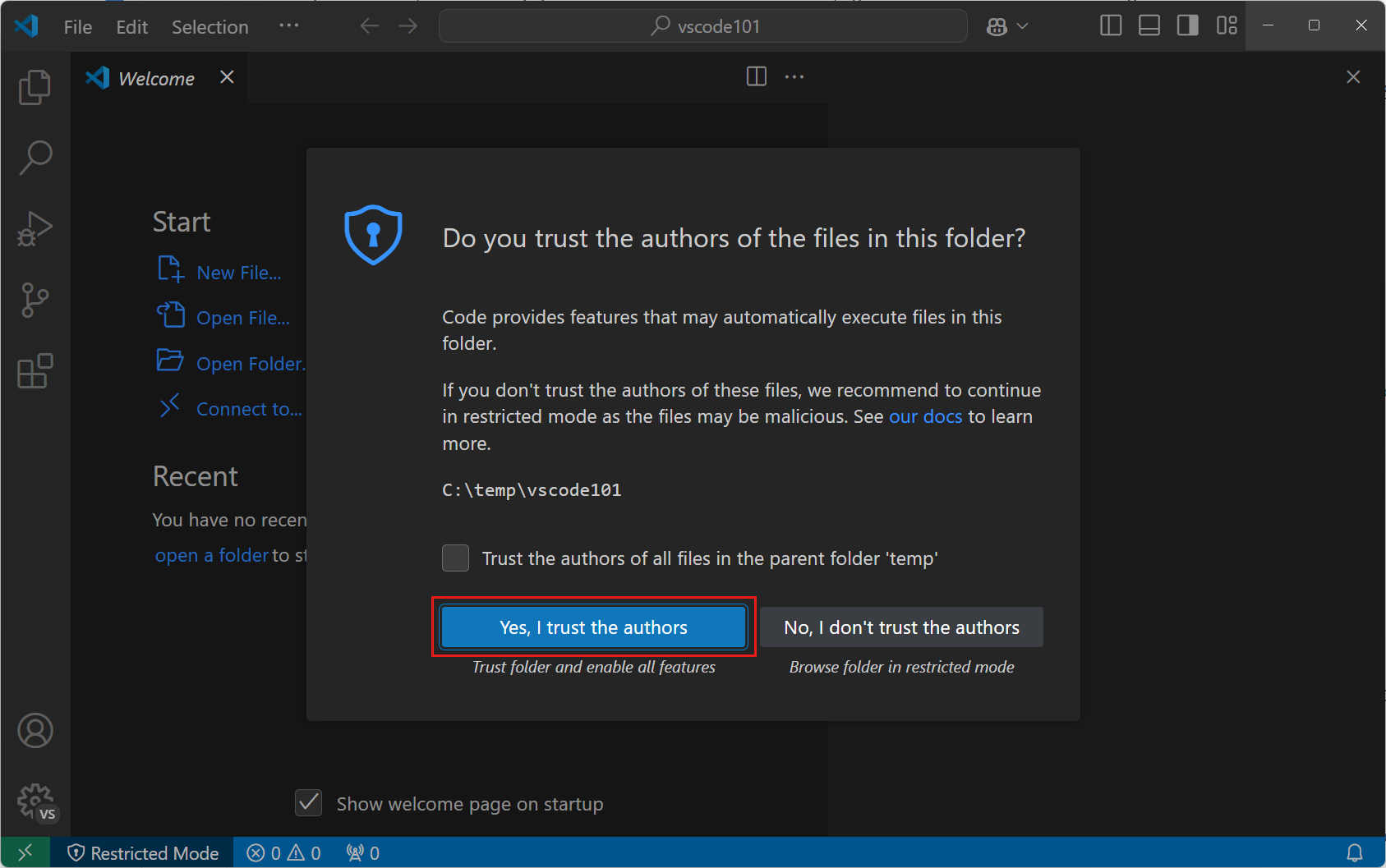
- The first time you open a new folder, VS Code asks whether you trust the authors
- Choose "Yes, I trust the authors" for your own course files
- Trust controls whether extensions and tasks are allowed to run automatically