Touring the VS Code Interface
1. The Activity Bar
- The column of icons on the far left
- Switch between Explorer, Search, Source Control, Run & Debug, Extensions
- Clicking an icon changes what the Side Bar shows
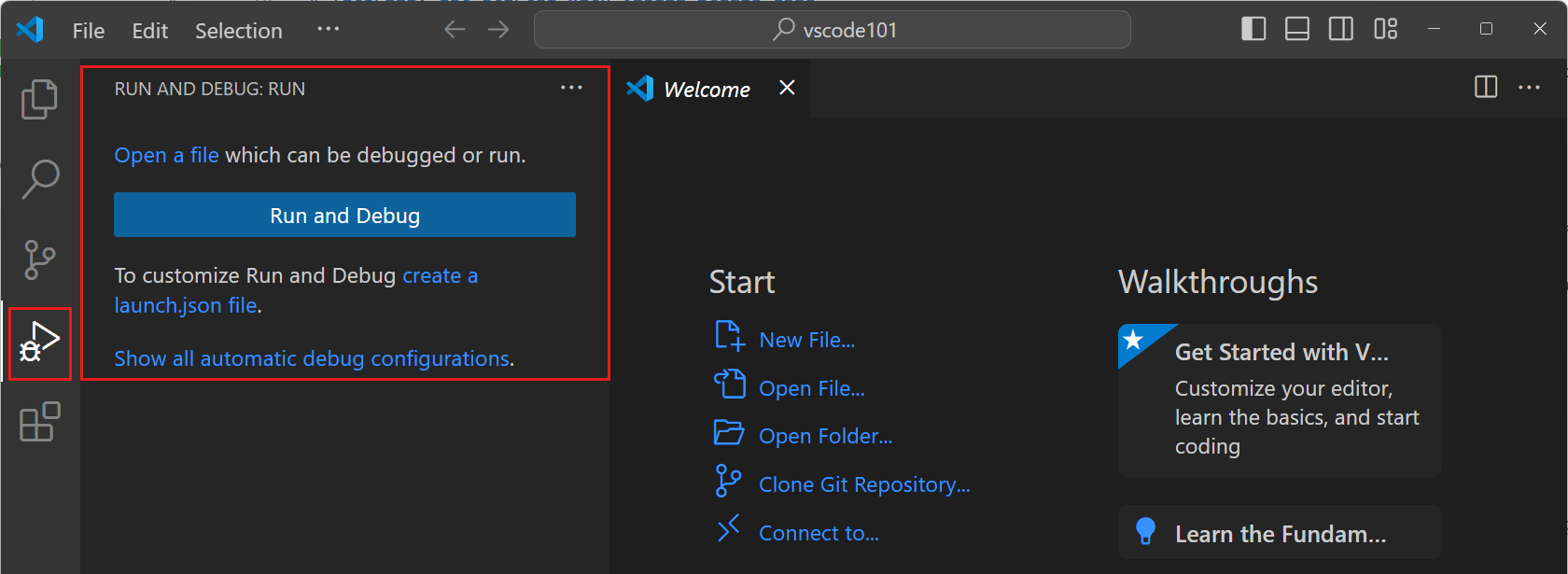
2. The Side Bar
- Sits next to the Activity Bar
- Shows files/folders (Explorer), search results, or source-control changes, depending on the active view
- Toggle it on/off with
Cmd/Ctrl+B
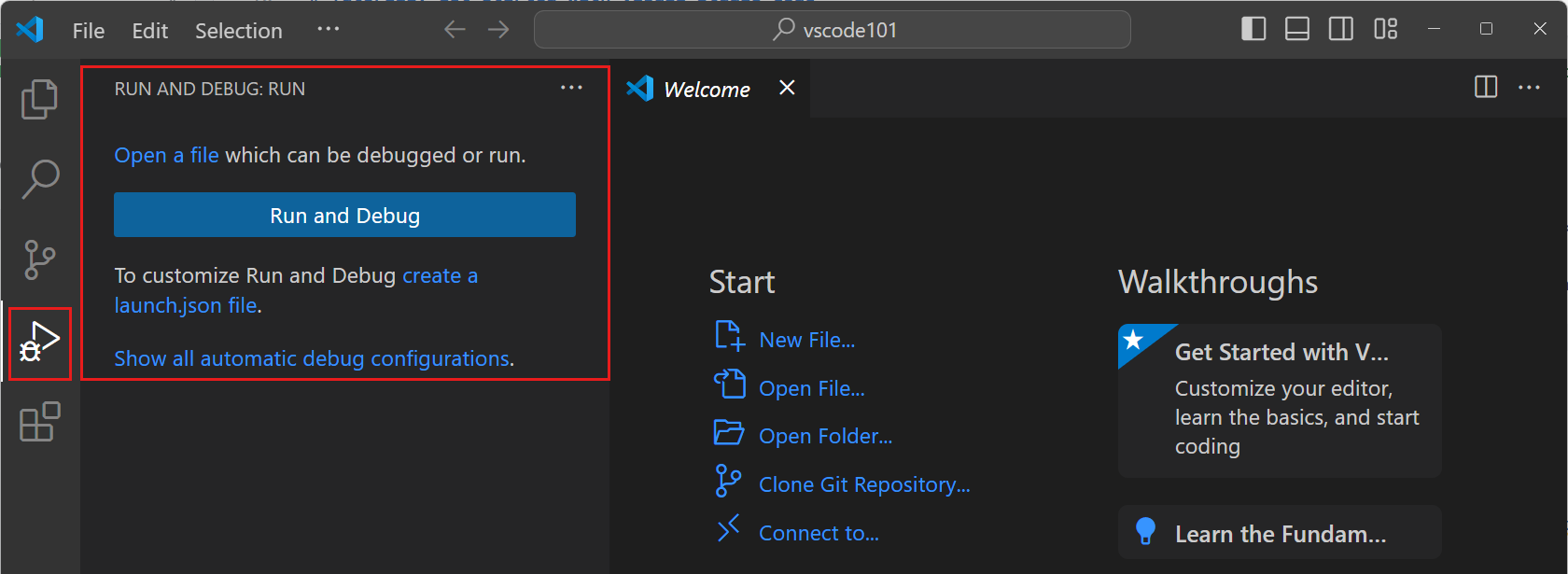
3. The Editor & Panel
- Editor (center) — where you write and view code; split it into multiple panes
- Panel (bottom) — Terminal, Output, Debug Console, Problems
- Open a terminal in the Panel:
Ctrl+`
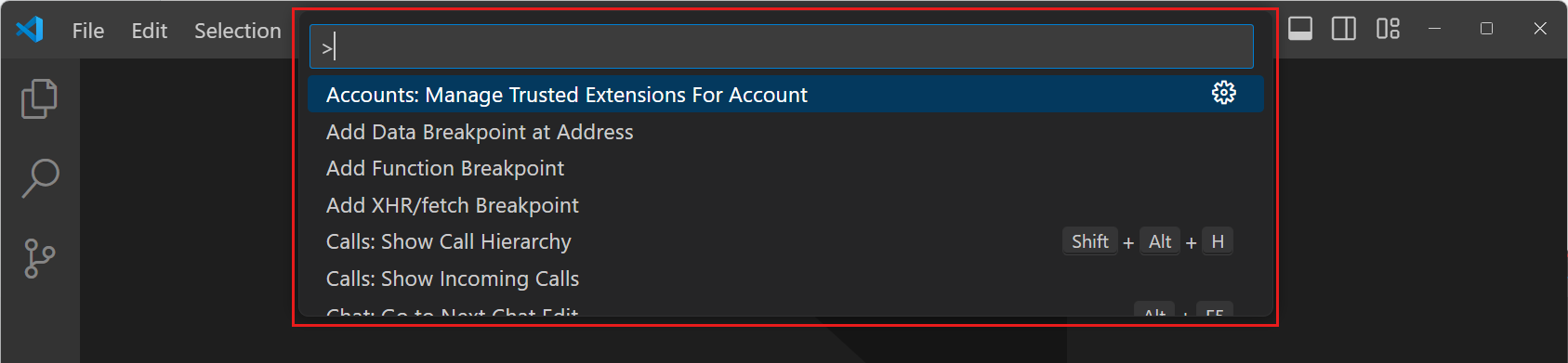
4. The Command Palette
- Press
Cmd/Ctrl+Shift+P to open it
- Type any command by name — no need to remember menus or shortcuts
- Works for almost everything: formatting, Git, extensions, settings