Getting a Navigator API Key
Navigator keys are self-service through UF IT's LiteLLM dashboard at api.ai.it.ufl.edu/ui.
Steps
- Go to api.ai.it.ufl.edu/ui. You're redirected to UF's standard
GatorLink login (
login.ufl.edu) — sign in with your GatorLink credentials and 2FA. - Once signed in you land on the NaviGator AI Gateway dashboard. Open Virtual Keys in the sidebar (this is what Navigator calls its API keys) — it lists every key you already own.
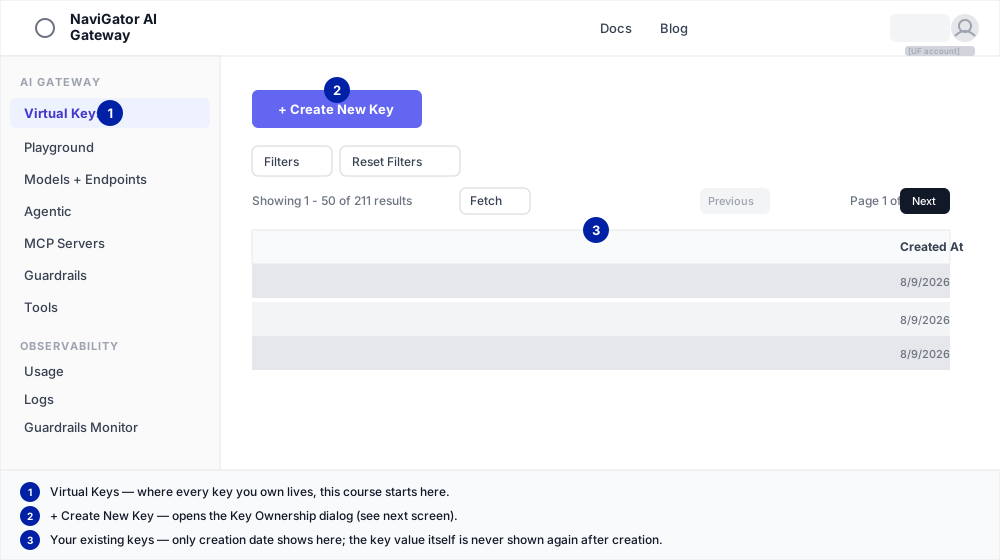
- Click + Create New Key. This opens the Key Ownership dialog:
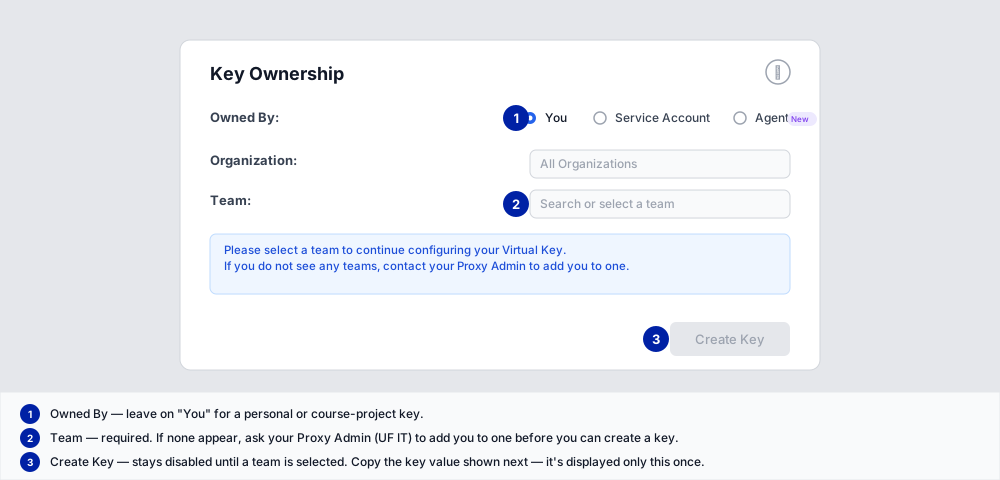
- Leave Owned By on You for a personal or course-project key.
- Team is required — pick one from the dropdown. If none appear, ask your Proxy Admin (UF IT) to add you to a team before you can create a key.
- Create Key stays disabled until a team is selected.
- Copy the key immediately — the dashboard shows the full key value only once, at creation time. If you navigate away before copying it, delete the key and create a new one; there's no way to reveal the same key again.
- Paste the key into your project's
.envfile as described in The .env Pattern, and verify it with thecurlcalls on that page.
Notes
- Treat the key like a password — see the security check in The .env Pattern.
- If you lose access or leave the project, revoke the key from the same Virtual Keys page rather than leaving it active.
(The two diagrams above are redrawn from the live dashboard, not screen captures — api.ai.it.ufl.edu/ui
sits behind GatorLink SSO, so a real screenshot has to come from someone with a UF login. If you're
the next person editing this page and have access, swap in actual screenshots of the Virtual Keys
list and the Create New Key dialog.)