Git & GitHub Desktop: Version Control from Scratch
A real git tutorial, plus the desktop app and .gitignore.
Where this tutorial comes from: concepts (version control, commits, branches, centralized vs. distributed) are adapted from UF Open Source Club's Fall 2021 "GBM #2: Git and GitHub" (docs.ufosc.org). Commands (
init,clone,add,commit,status,remote,push,pull) are adapted from GitHub's own Git Guides. Everything else is explained in this course's own words, not copied from either source.
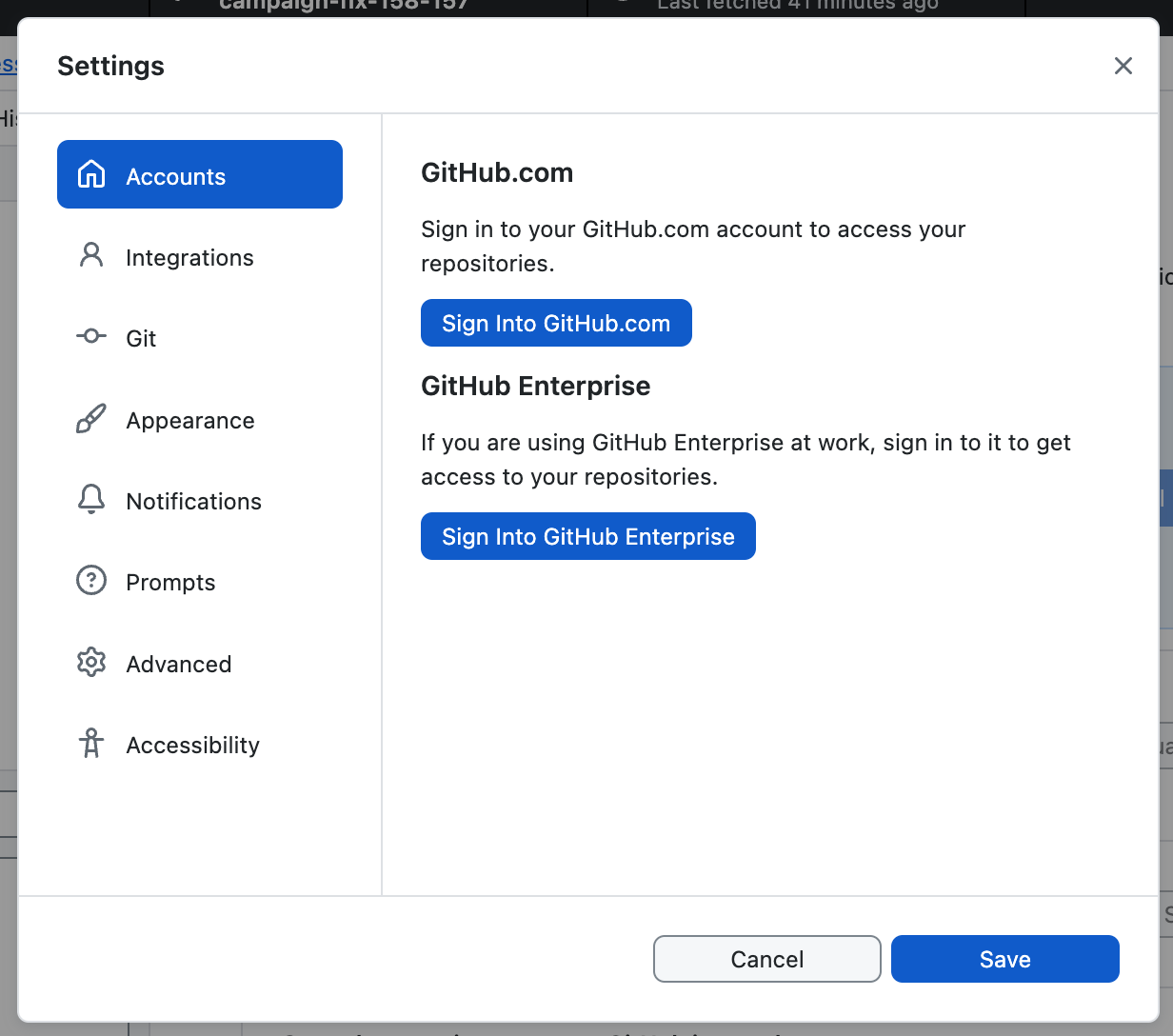
1. Sign In to GitHub Desktop
- Install from desktop.github.com
- Open Settings (Mac) or Options (Windows) → Accounts
- Desktop then handles authentication for every clone, push, and pull
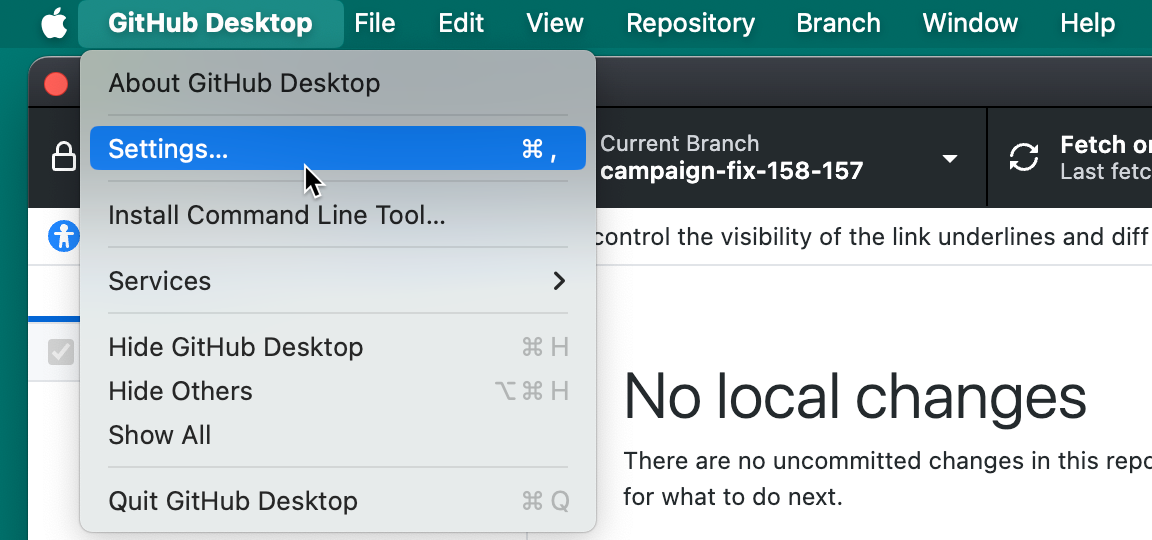
2. The Settings/Options Window
- Mac: GitHub Desktop menu → Settings
- Windows: File menu → Options
- Same pane either way: Accounts, Integrations, Git config, Appearance
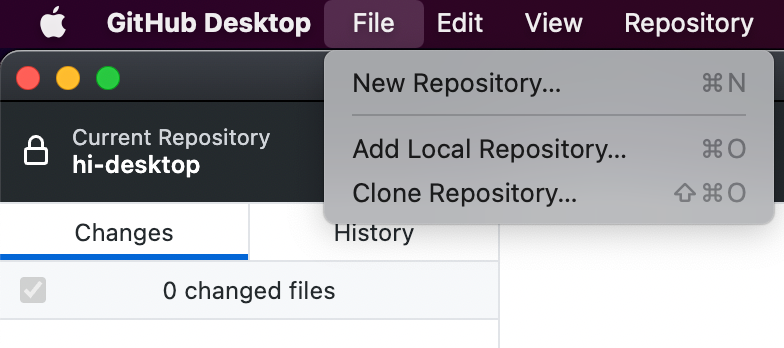
3. Everyday Repository Actions
- File menu covers the basics: clone, add a local repo, new repo
- Changes tab shows a diff before you commit — read it before committing
- History tab shows every past commit
4. What Is Version Control?
- As you write code, natural checkpoints occur — each one is a new version
- A version needs an id, a message describing the change, an author, and a timestamp
- Version control tracks the whole set of project files together, not each file in isolation
5. Snapshots vs. Diffs
- Snapshot approach — store the entire project at each checkpoint: fast to reconstruct, but memory-heavy
- Diff approach — store only what changed since last time: memory-efficient, slower to reconstruct
- Git blends both — it stores snapshots, but compresses and shares unchanged data between them
6. Commits and Branches
- A commit is one version — the changes plus its metadata, ideally one atomic logical change
- A branch is an isolated copy of the project you can safely experiment on, then merge back later
- Small, atomic commits keep history readable and easy to reverse
7. Centralized vs. Distributed Version Control
- Centralized VCS — one authoritative copy lives on a server; you work directly against it
- Distributed VCS — every contributor holds a full local copy (all files, branches, commits); one remote copy is just the agreed "official" one
- Git is distributed — that's why commits, branches, and history all work with zero network connection
8. What Git Actually Is
- A distributed version control system implementing commits, branches, merging/rebasing, and local + remote repositories
- Storage is snapshot-based under the hood
- Originally created to version the Linux kernel itself
9. Anatomy of a Git Commit
- Commit hash — the unique id (a SHA)
- Commit message — what this version changed, and why
- Author / committer name, email, date — day to day you mostly only need to think about the message
10. Installing Git
Check what you already have:
- Already installed on most Mac and Linux machines
- Windows: install via git-scm.org, or get it bundled with GitHub Desktop
- macOS via Homebrew:
brew install git
11. git init vs. git clone
git init— turn a folder that already exists locally into a git repo (then add a remote and push)git clone [url]— download a repo that already exists on a remote, with every file, branch, and commit- Rule of thumb:
initif starting fresh locally,cloneif the remote already exists
12. git add: Staging Your Changes
- Moves changed files into the staging area — what will go into your next commit
git add <file>stages one file;git add -Astages everything (respecting.gitignore)- Nothing gets committed until it's staged first
13. git commit: Saving a Snapshot
- Saves whatever is currently staged as a new version
- Good messages are short, present-tense, and specific — not "fixes" or "update"
git commit --amendcan fix the most recent message — only before it's pushed
14. git status: Always Safe to Run
- Shows your current branch, what's staged vs. unstaged, and how far ahead/behind the remote you are
- Read-only — running it never changes anything
- Good habit before committing, pulling, or pushing
15. git remote: Talking to the Server
- Manages the pointers to remote copies of the repo
originis the default name for wherever you cloned fromgit remote -vlists them;git remote add origin <url>attaches one to a repo you started withgit init
16. git push and git pull
git push— uploads your local commits to the remote branchgit pull— downloads and merges the remote's new commits into yours (it's fetch + merge combined)- Pull before you push — surface conflicts locally, before they're a shared problem
17. Put It Together: the Everyday Workflow
18. Know What Not to Commit
.gitignoretells git which files to never track- Typical candidates: build artifacts,
__pycache__/, virtual env folders, IDE settings - Most important: secrets — API keys, passwords,
.envfiles
19. GitHub's Own Guidance on .gitignore
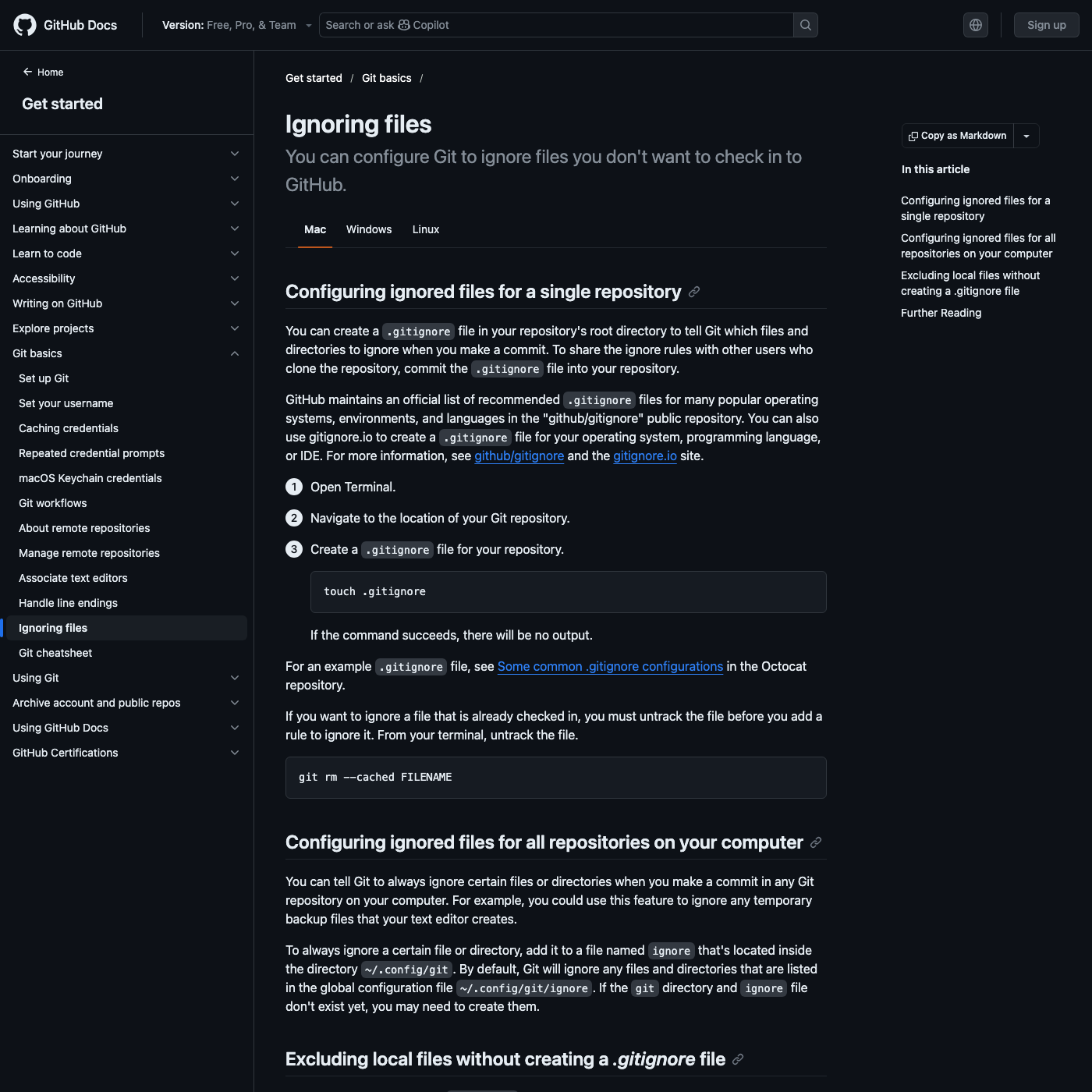
- Create one per repo:
touch .gitignore - Already tracking a file you now want ignored?
git rm --cached FILENAMEfirst - GitHub also points to the
github/gitignorerepo and gitignore.io
20. Generate One Instead of Writing It
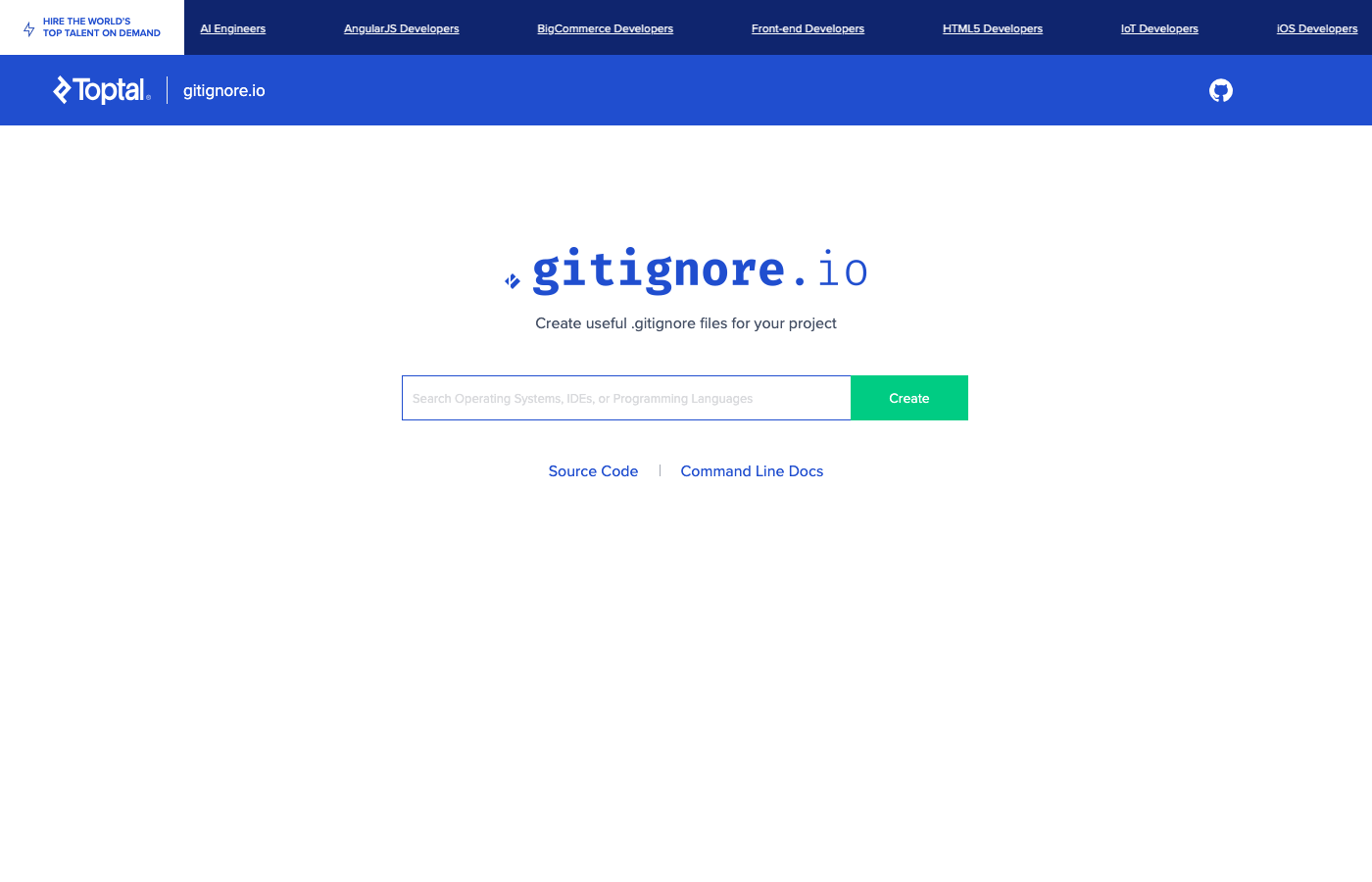
- Type a language or tool, get a ready-made
.gitignore - Covers Python, Jupyter, VS Code, macOS/Windows cruft in one shot
- Command-line API:
curl toptal.com/developers/gitignore/api/python
21. The Actual Generated Output
curl https://www.toptal.com/developers/gitignore/api/python — real output, unedited:
# Created by https://www.toptal.com/developers/gitignore/api/python

### Python ###
# Byte-compiled / optimized / DLL files
__pycache__/
*.py[cod]

# Distribution / packaging
.Python
build/
dist/
*.egg-info/
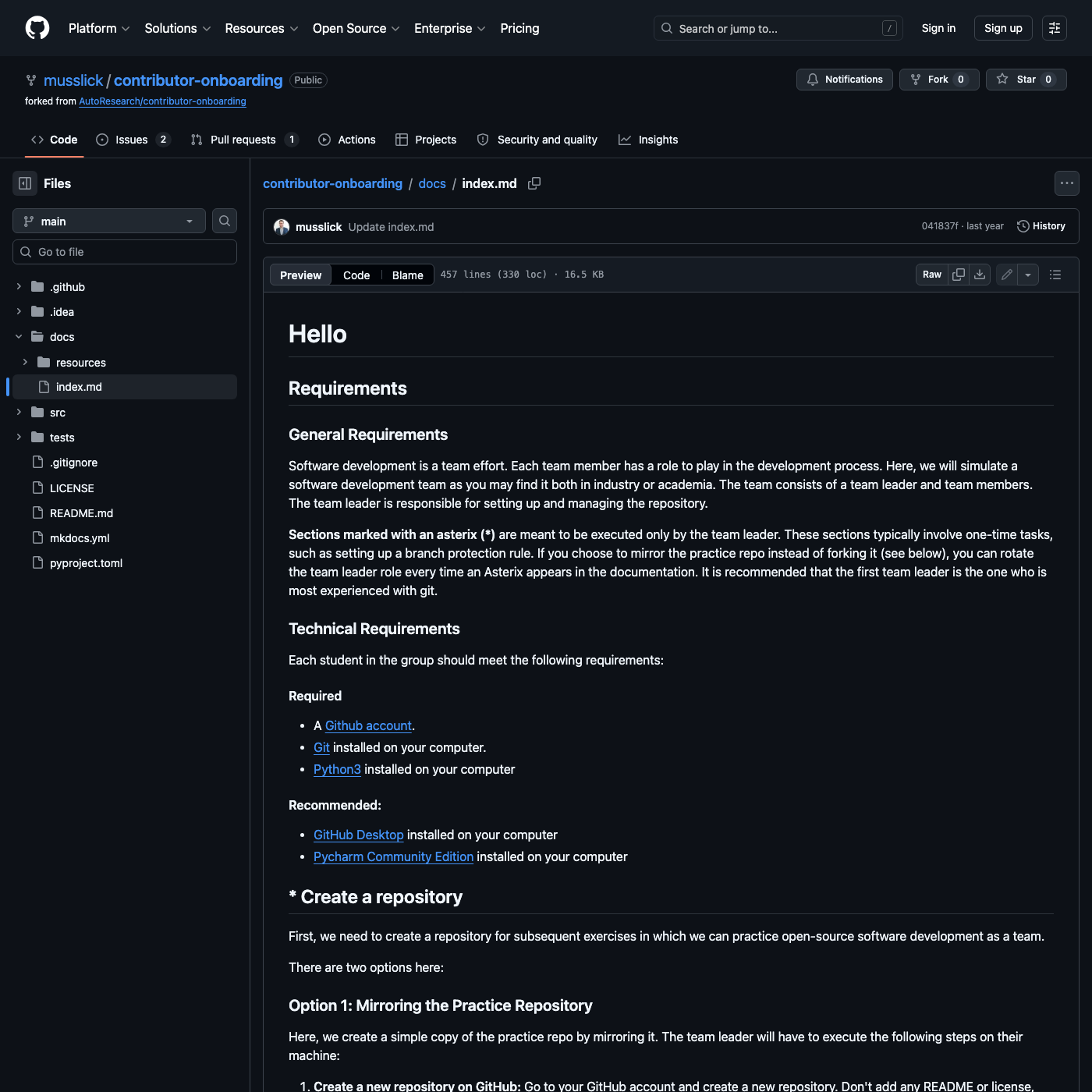
22. A Real Contributor Onboarding Doc
- Forked from
AutoResearch/contributor-onboarding - Simulates a real dev team: a team leader plus team members, working through a shared repo
- Required: GitHub account, Git, Python3. Recommended: GitHub Desktop, PyCharm CE