Installing Extensions & Configuring Settings
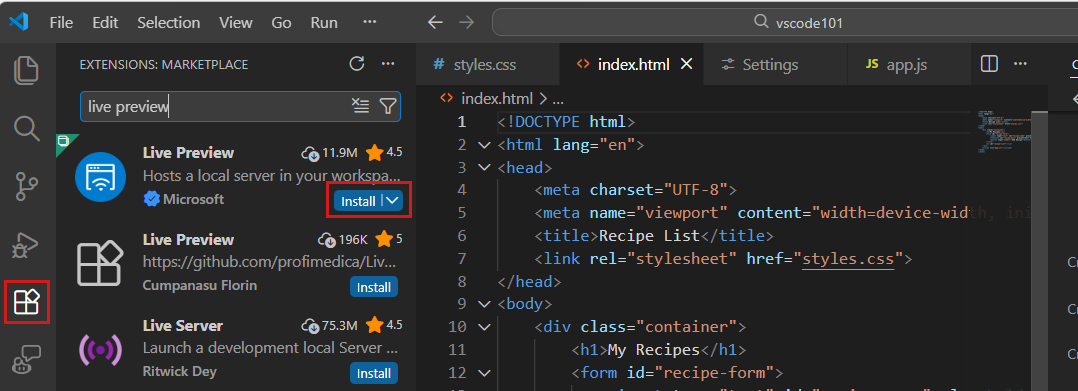
1. Open the Extensions View
- Click the Extensions icon in the Activity Bar
- Or press
Ctrl+Shift+X (Windows/Linux) / Cmd+Shift+X (macOS)
2. Install the Python Extension
- In the Extensions search box, type "Python"
- Choose the official extension published by Microsoft
- Click Install
3. Install the Jupyter Extension
- Search "Jupyter" (also published by Microsoft)
- Click Install
- This adds native
.ipynb notebook support to VS Code
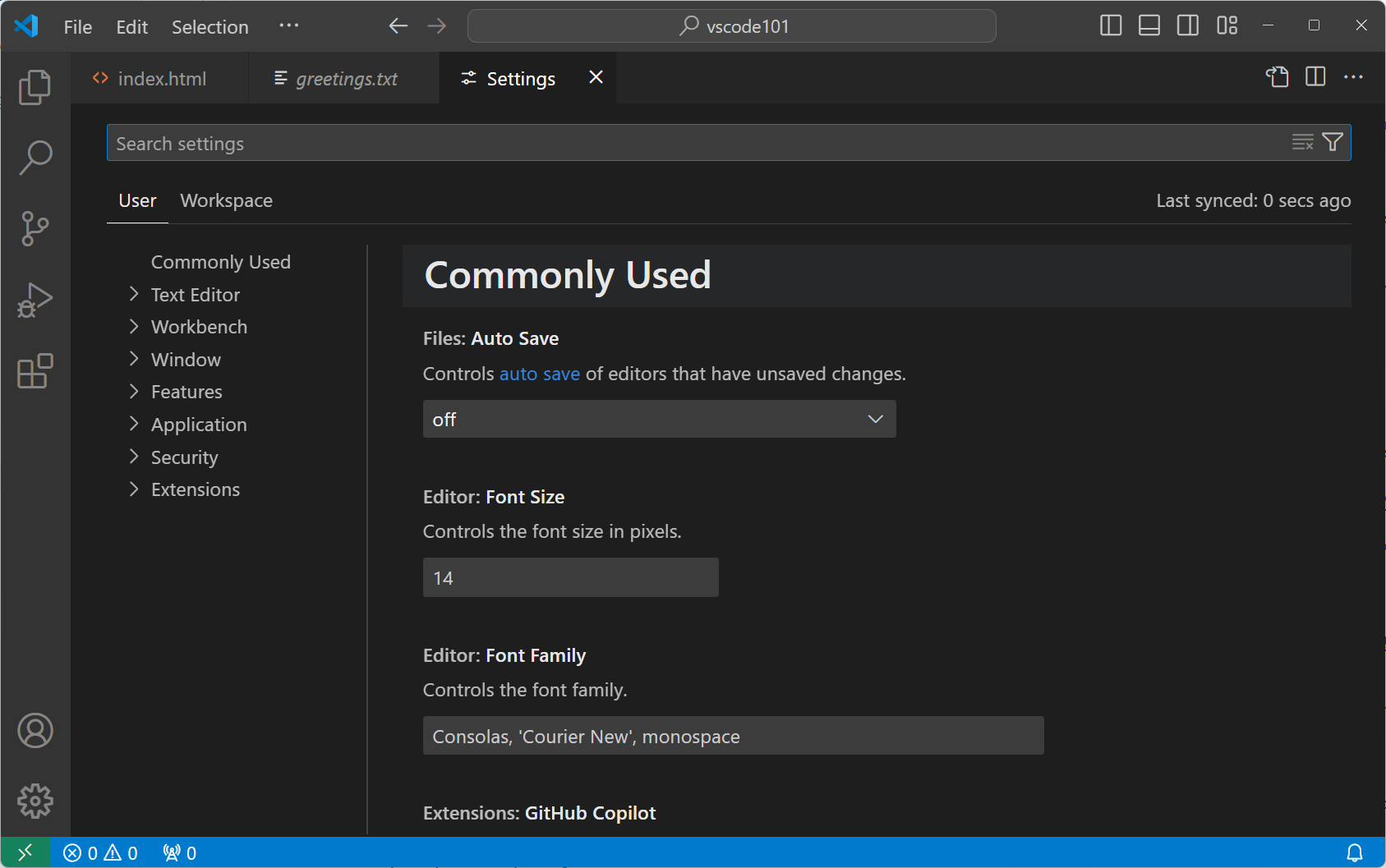
- Open Settings:
Cmd/Ctrl+,
- Adjust preferences: theme, font size, Auto Save, formatting on save
- Set your conda environment as the default Python interpreter via the Command Palette →
"Python: Select Interpreter"