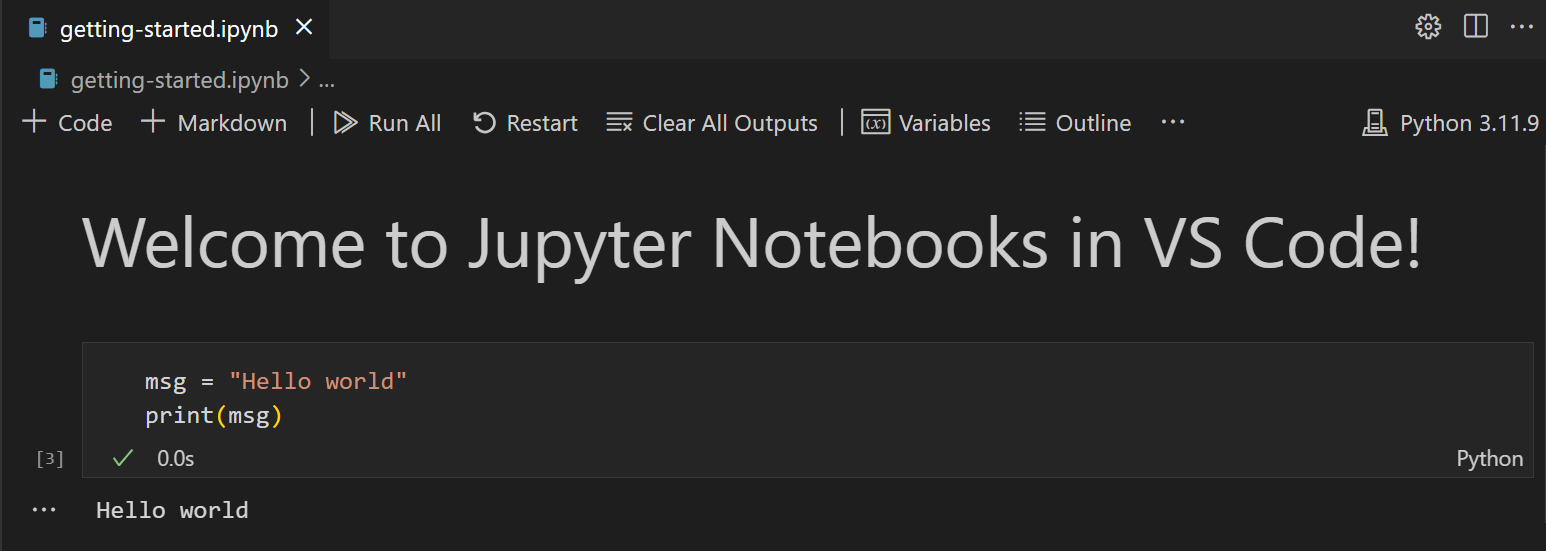
Running Cells & Writing Markdown
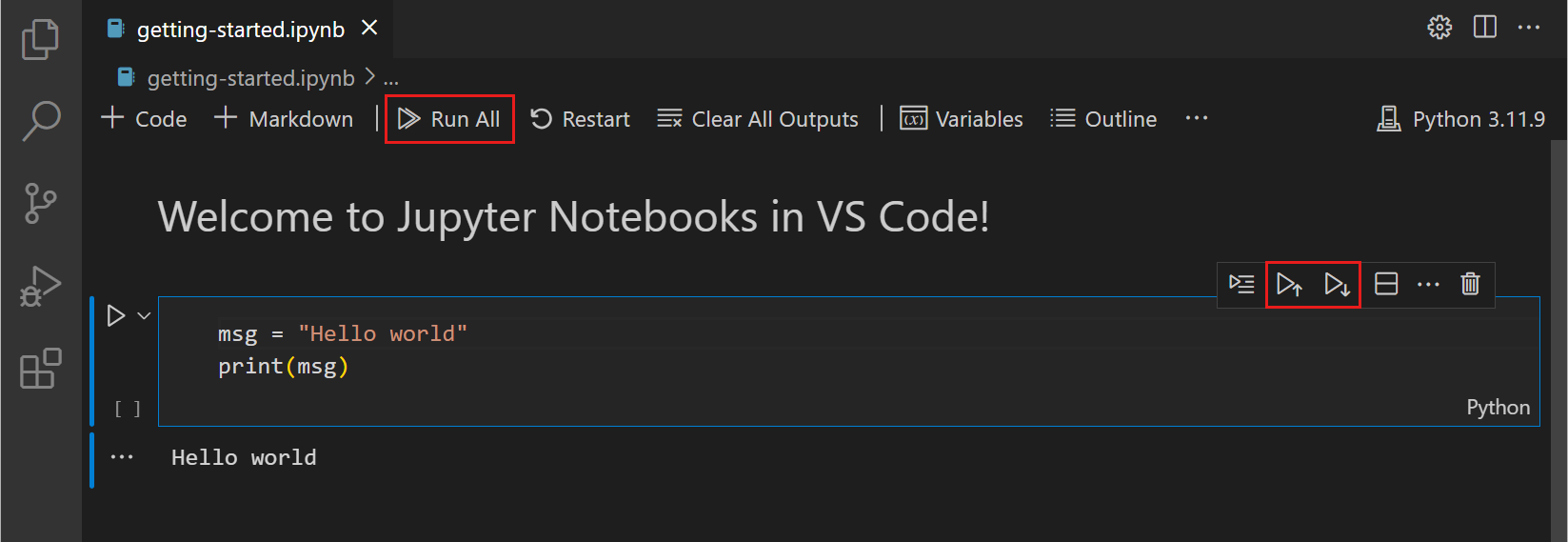
1. Run a Code Cell
- Click inside a code cell
- Press
Shift+Enter to run it and move to the next cell
- Press
Ctrl+Enter to run it and stay on the same cell
2. View the Output
- Output appears directly beneath the cell that produced it
- Text, tables, and plots (e.g. from matplotlib) all render inline
- A run number like
[3] shows the execution order
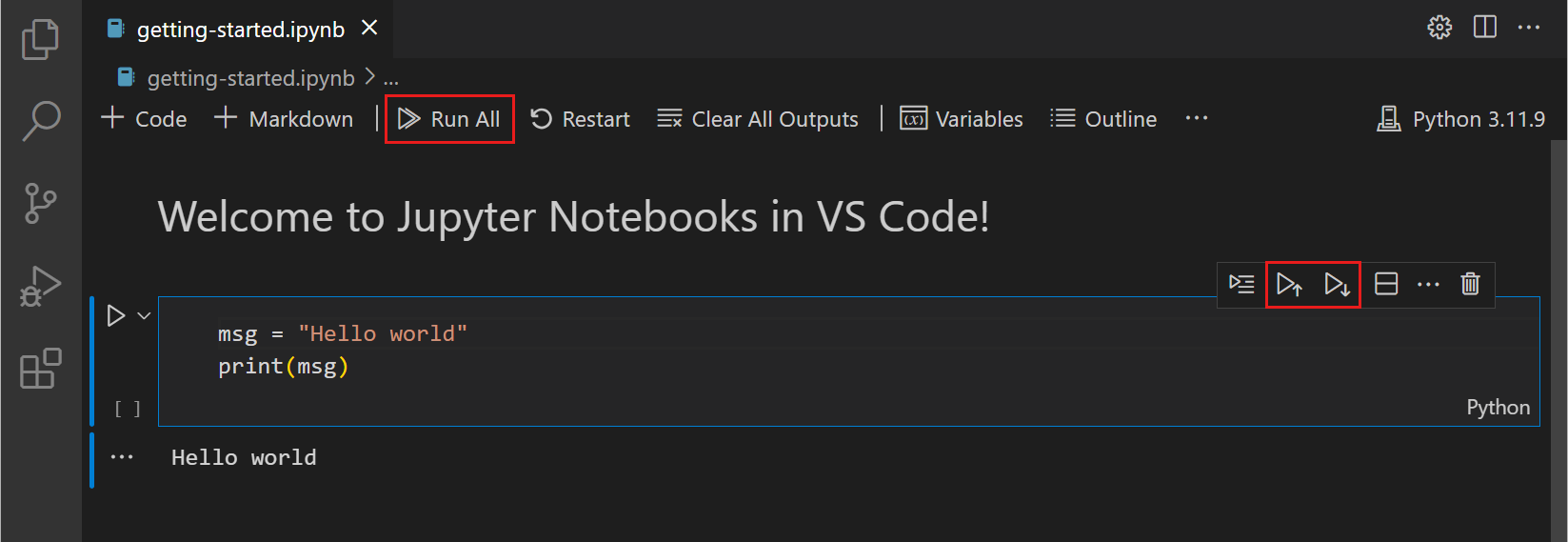
3. Write a Markdown Cell
- Add a + Markdown cell to document your notebook
- Headings:
# Title
- Emphasis:
**bold**, *italic*
- Lists, links, and images all use standard Markdown syntax
4. Render Markdown & Save
- Press
Shift+Enter (or Esc then Enter) to render the Markdown cell
- Save the notebook:
Cmd/Ctrl+S